
SOFTWARE & AUTOMATION
FOR BAKERIES.
NEW · PATRIQ MCP SERVER
Tell Patriq
what you want to do.
Develop recipes. Understand consumption. Trace raw-material lots. The Patriq MCP Server connects your AI assistant to the data and supported functions in your bakery software.
Your task, in your own words. With your existing Patriq installation.

EXAMPLES FROM EVERYDAY BAKERY WORK
From the first question
to the next step.
A report leads to a specific batch. A recipe idea becomes a new variant. A request for materials becomes a traceable stock transaction. Patriq MCP connects these steps through conversation. Explore ten examples of working with your existing recipe, production and stock data.
01 / DEVELOP YOUR RECIPES
Develop a variant.
Revisit an earlier version.
A new product often starts with a small change to a proven recipe. Ask to see the current ingredient quantities, develop a specific variant and compare the result. The main variant stays unchanged.
A variant is an alternative ingredient list. A recipe version preserves an earlier state: explicitly ask to save it before making the change.
01 / START WITH YOUR EXISTING RECIPE
“Show me the ingredient quantities for our Country Bread and its existing variants.”
Example: you want to develop a reduced-salt variant and be able to review the previous ingredient quantities later.
02 / ASK A FOLLOW-UP
“Save the current recipe as a version. Then create a Reduced Salt variant: 10% less salt, with every other ingredient quantity unchanged.”
03 / CHECK THE RESULT
“Compare the new variant with the main variant and show me the saved ingredient quantities from before the change.”
You see the differences and then decide whether to use the new variant in production.
Add a new ingredient.
Start with your saved defaults, then make the changes you need. Build on the raw-material data you already have.
TRY ASKING
“Create Wholegrain Rye Flour using our saved defaults.”
“Assign it to our flour group, make it visible on Line 1 and show me the saved settings.”
An unused item code is assigned automatically. The group, line and defaults come from your existing configuration.
Turn a recipe into a product.
Link your recipe to a piece weight, barcode and weigh-out settings.
TRY ASKING
“Create a Rye Roll based on our Rye Bread recipe: 120 g of dough per piece.”
“Set the barcode to 001234 and the weigh-out tolerances to minus 5 g and plus 10 g. Show me the product details for review.”
Maintain the saved product settings in the same conversation. The MCP Server does not operate a scale.
02 / UNDERSTAND YOUR PRODUCTION
From the production day
to an individual batch.
Start with the whole production day, then ask more specific questions. Patriq summarises recorded quantities by recipe, line or raw material. You can use your own production-day boundaries, even when the day runs past midnight.
The quantities come from recorded dosing. They do not automatically represent saleable finished goods.
01 / GET THE OVERVIEW
“Summarise yesterday’s production day by recipe. Show me the exact time period.”
“Include batches with faults and manual dispensing.” You decide which records to include in the report.
02 / ASK A FOLLOW-UP
“How does flour consumption break down by line?”
03 / CHECK THE RESULT
“Compare it with the previous production day and show me the batches behind the report.”
Turn an overview into a clear basis for your production meeting. Follow the figures back to the records behind them.
Take a closer look at an unusual batch.
Follow an unusual result in the overview through to its recorded ingredients, temperatures and mixing data, without having to gather the related information separately.
TRY ASKING
“Open this production batch and show me the recorded ingredient quantities.”
“What temperature and mixing data are stored for it? Put them in a table for our meeting.”
The detail available depends on what was recorded. A suitable AI client can also turn the data into an Excel file.
03 / TRACE RAW-MATERIAL LOTS
One raw-material lot.
Its journey through your bakery.
When a question arises about a raw-material lot, you need more than a current stock figure. Patriq links its recorded use to the relevant production batches. View warehouse stock, stock remaining at the lines and movement history separately.
Current stock and historical consumption remain separate quantities. Missing or ambiguous information is not presented as a confirmed source.
01 / START WITH THE RAW-MATERIAL LOT
“Trace raw-material lot M-260918. How much remains in the warehouse and at the lines? Show its recorded use separately.”
02 / FOLLOW ITS USE
“Which production batches used it? Show the associated recipes, variants and product details.”
03 / ADD THE STOCK MOVEMENTS
“Also show me the recorded material movements. Flag any missing or ambiguous information.”
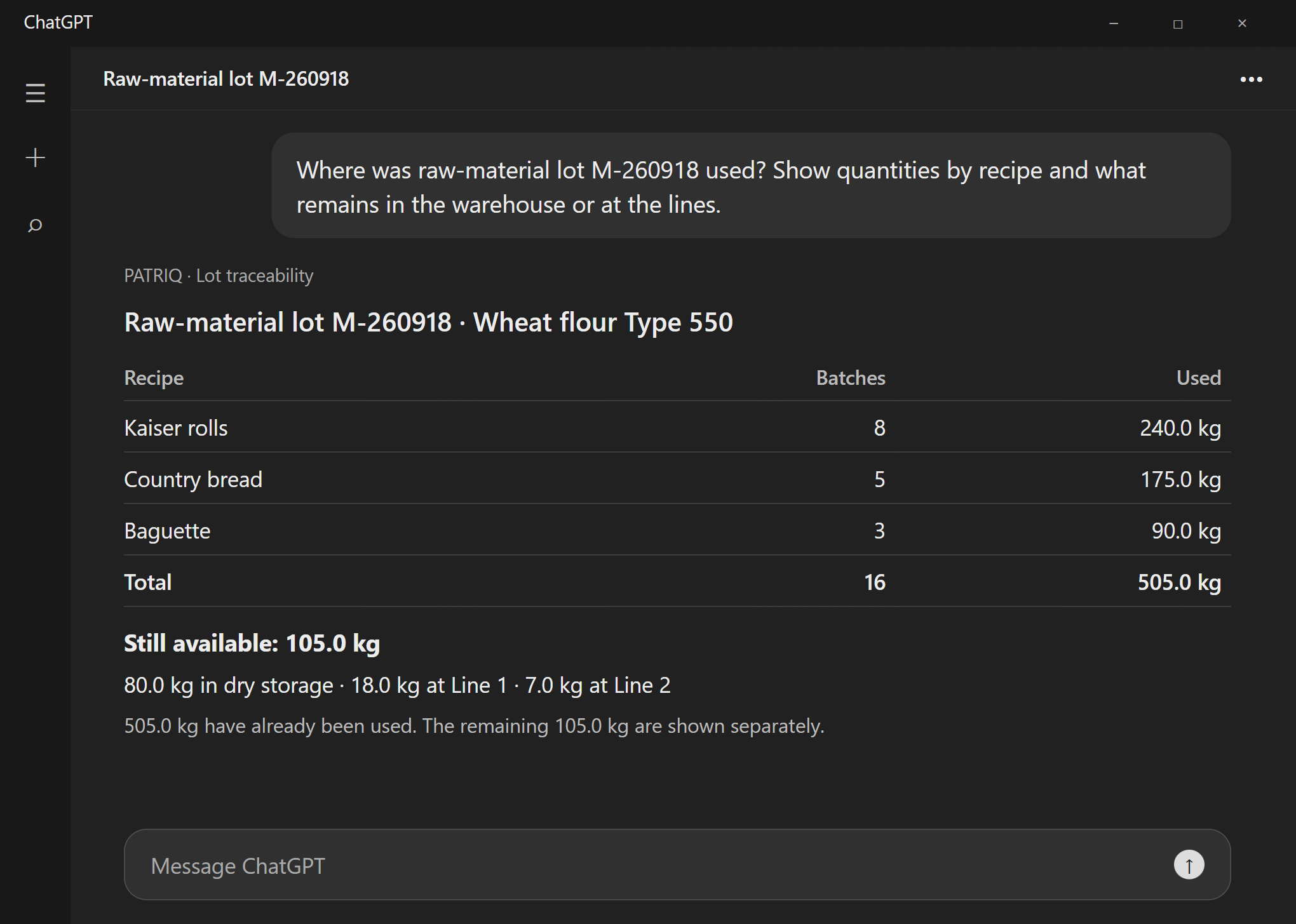
Example conversation · Sample data
Or start with a production batch.
Does the question concern a specific production batch? Start there, find the raw-material lots it used, then follow where else they were used.
TRY ASKING
“Show me the raw-material lots recorded for this production batch.”
“Trace the flour lot it used: how much stock remains, and which other production batches used it?”
Find related records and remaining stock through the documented links between warehouse and production.
04 / WITH TOUCHSTORAGE
Record a transfer to the line.
Check the stock afterwards.
Check the material available, choose the right lot and record the quantity you need for production. The MCP Server uses your existing item-to-component links and configured stock rules.
When you book material to production, the MCP Server checks expiry dates and your configured FIFO rule. The available stock functions depend on your TouchStorage installation.
01 / SELECT THE STOCK
“Show me the warehouse stock for wheat flour, including lot, quantity and expiry date.”
Choose the right stock for your next production run.
02 / ASK A FOLLOW-UP
“Record a transfer of 25 kg from the selected stock to Line 1 for the linked flour component.”
03 / CHECK THE RESULT
“Show me the transaction and the stock remaining in the warehouse and at the line.”
Starting stock, material movement and result stay in the same conversation. The transaction remains part of your existing stock workflow.
Follow a delivery into stock.
Enter the purchased item, packages, lot and expiry date, then check whether the receipt request has actually resulted in stock.
TRY ASKING
“Show me the purchased item Rye Flour and its saved package weight.”
“Submit a receipt for four packages with this lot and expiry date to the selected warehouse. Then check the stock and the associated transaction.”
When TouchStorage processes the receipt, an accepted request does not yet mean the goods have been booked into stock. The actual stock is checked separately.
Record stocktake corrections and review them.
Correct warehouse stock to match the weighed quantity and inspect the recorded change.
TRY ASKING
“Show me the current warehouse stock for this entry.”
“The stocktake found an actual weight of 38 kg. Set the stock to that absolute quantity and show me the recorded correction.”
Other supported tasks include warehouse transfers, write-offs using an existing reason, and returning the full remaining stock entry from a production line.
Example tasks, not customer data. Available tasks depend on your Patriq installation and the data it contains.
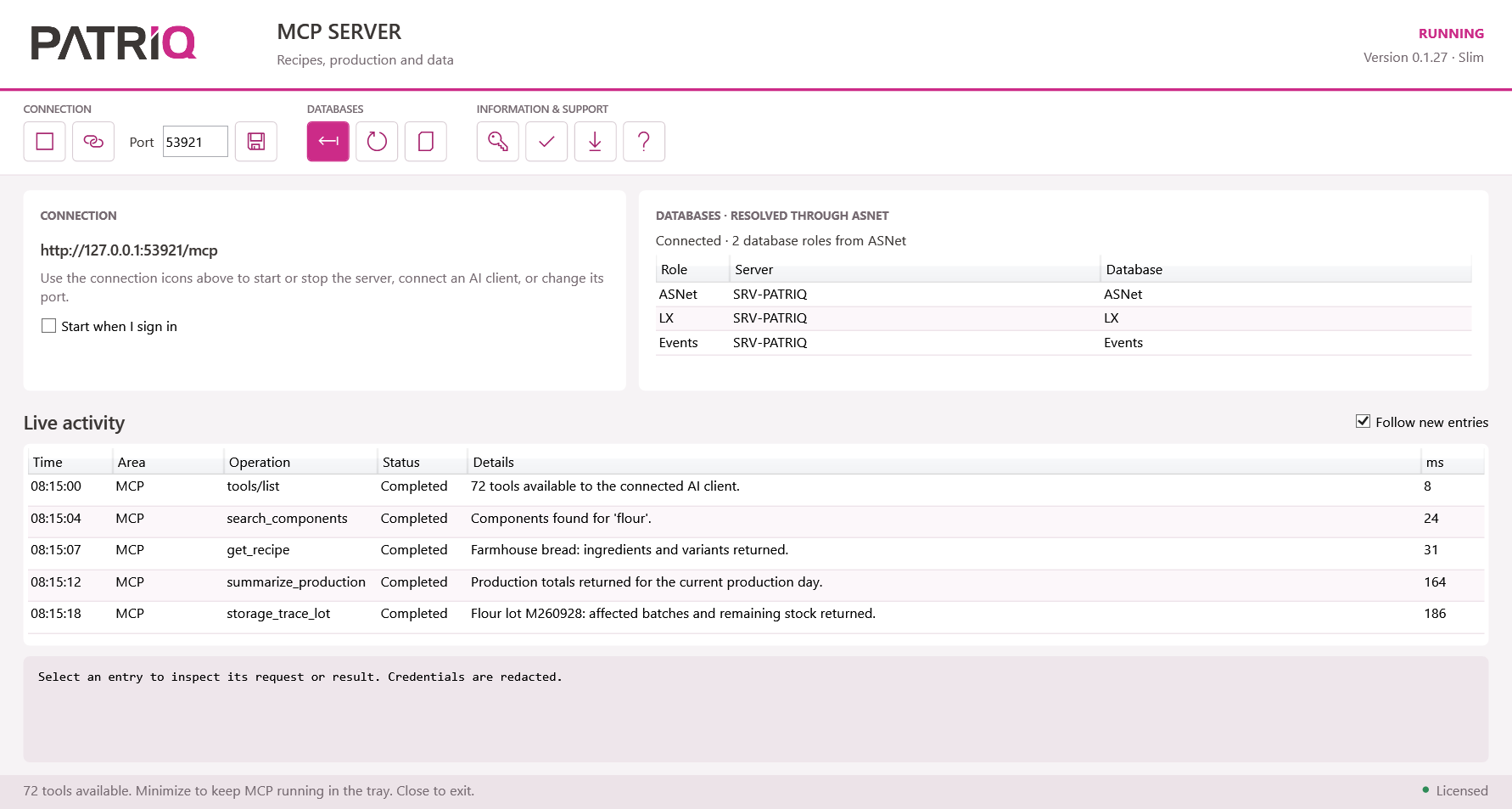
Patriq MCP Server · Application view with sample data
NATURAL REQUESTS. BUSINESS RULES ENFORCED.
A new conversation.
The same business rules.
The AI assistant formulates the request. The MCP Server checks business rules and carries out valid changes. For example, it prevents duplicate item codes or the deletion of a component that is still used in a recipe. If a record has changed in the meantime, an outdated change request is rejected, preserving the other user’s changes.
The live log shows requests and results. Patriq Office remains available for specialist functions. Direct machine control is not part of the MCP Server.
WORKS WITH YOUR EXISTING INSTALLATION
Your next step.
Ready to get started.
A Patriq MCP licence, database access and a compatible AI client, such as ChatGPT Desktop. We will check which tasks your installation supports and help you set it up.
Voice input and file creation depend on your chosen AI client. Patriq supplies the requested data; the AI assistant prepares it and can create files if it supports that function.
The MCP Server connects the AI client to your Patriq installation. If you use a cloud AI service, the requested data is processed by that provider. We will discuss your choice of client and data processing when setting up the connection.
PATRIQ MCP BY NIO
What would you ask Patriq?
Bring a task from your daily work. We will show you how to work through it in conversation.
FROM RECIPE TO PRODUCTION.
© 2026 Nio Mechatronik GmbH
Salzburger Straße 44 · 4690 Schwanenstadt · Austria